
Everpure Fusion Plug-in for Veeam 13.1: Linux VSA Sneak Preview
Heads up: this plug-in is upcoming and not GA. What you see here is a pre-release build, and details may change before it ships. If you want to get ahead of it, reach out to your Everpure team.
The new Everpure plug-in for Veeam supports really two things. It takes advantage of the Fusion fleet-wide management that is now built into every Everpure array. And it supports the 13.1 deployment of Veeam, not just on Windows but also on the Linux-based Veeam Software Appliance (VSA).
The VSA has gained a lot of popularity for its hardened posture: it runs fully on Linux and lets Veeam manage a lot of that itself. Simplified deployment, simplified management. We’re further solidifying that solution from our side here at Everpure. The plug-in will support 13.1 on both Windows and the VSA, but I’m concentrating on the VSA here.
If you’ve been following my v13.1 series, this is the plug-in piece of that puzzle.
The VSA: hardened by design
The VSA has a web UI. It’s Linux, so you’re not logging into the Linux server; you manage it over the web UI. There’s still a Windows client too, and it comes into play for the storage side.
There are a couple of ways to log in. Host management is where you manage things on the host: installing the plug-in, IP, certificates, remote access, things of that nature.
There’s also a Veeam Security Officer login, which splits security duties. If I want to do HA for the Veeam server, or add it to a domain, the Security Officer role has to log in and authorize it. Separation of duties. The VSA is very much about hardening the backup server, and we love that at Everpure. Pair it with SafeMode and multi-factor authentication against the array, and you get layered security that keeps your recoveries there when you need them.
Installing the plug-in
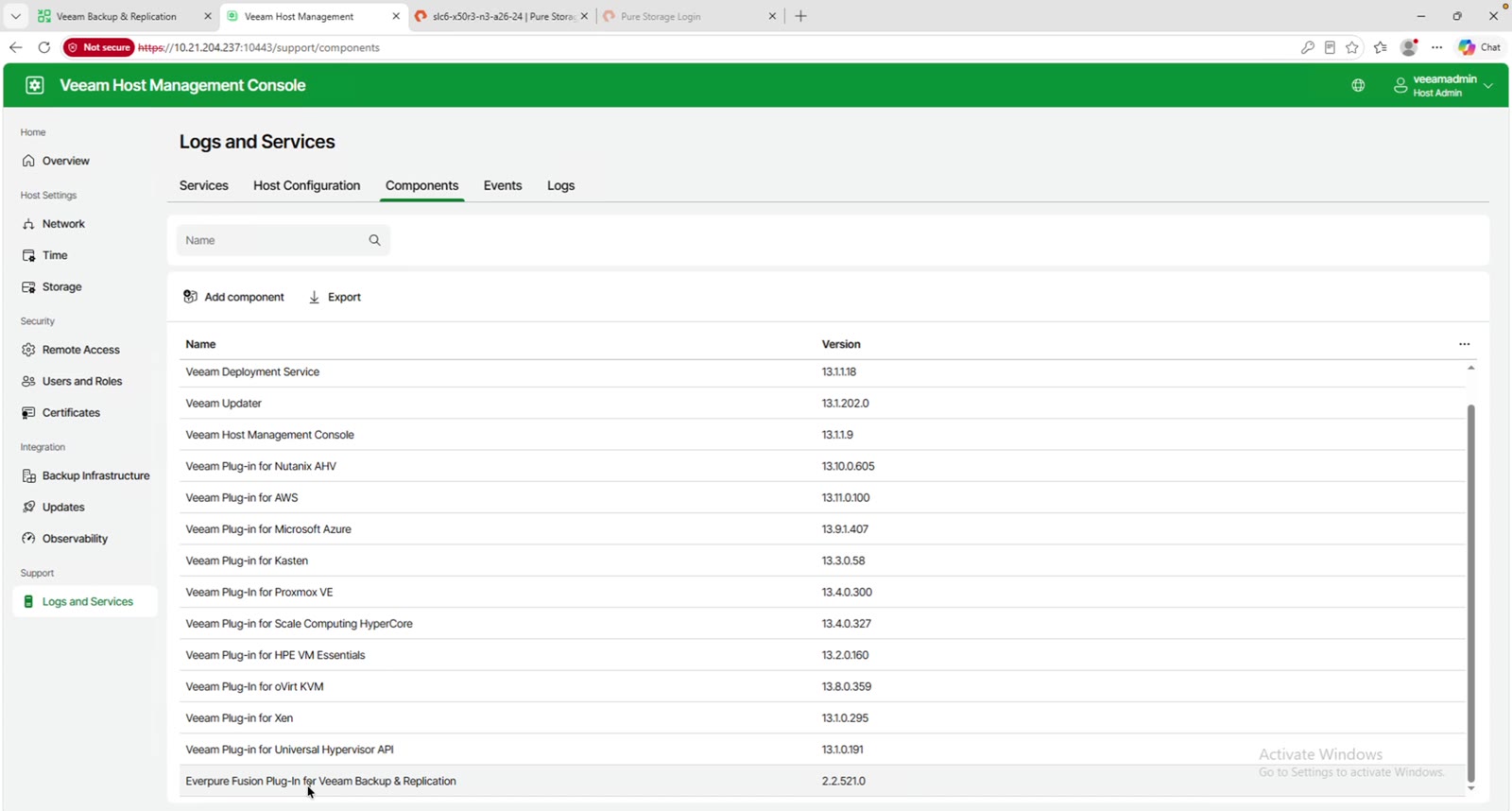
In host management, go to Logs and Services > Components. Adding a component is how you add the plug-in. It will ship with a Windows executable for Windows installs and a bundle file you load into the VSA. Once it’s loaded, the Everpure Fusion Plug-in for Veeam Backup & Replication shows up in the list along with its version number.
Backup from storage snapshots, out of the box
The Veeam web UI doesn’t have a storage integration section, but you can see the plug-in at work in the jobs. Open a job that has run and you’ll see all VMs were processed with storage integration. Once the plug-in is in, as long as your proxies can reach the storage (iSCSI, NFS, Fibre Channel), they use those snapshots in the backup process.
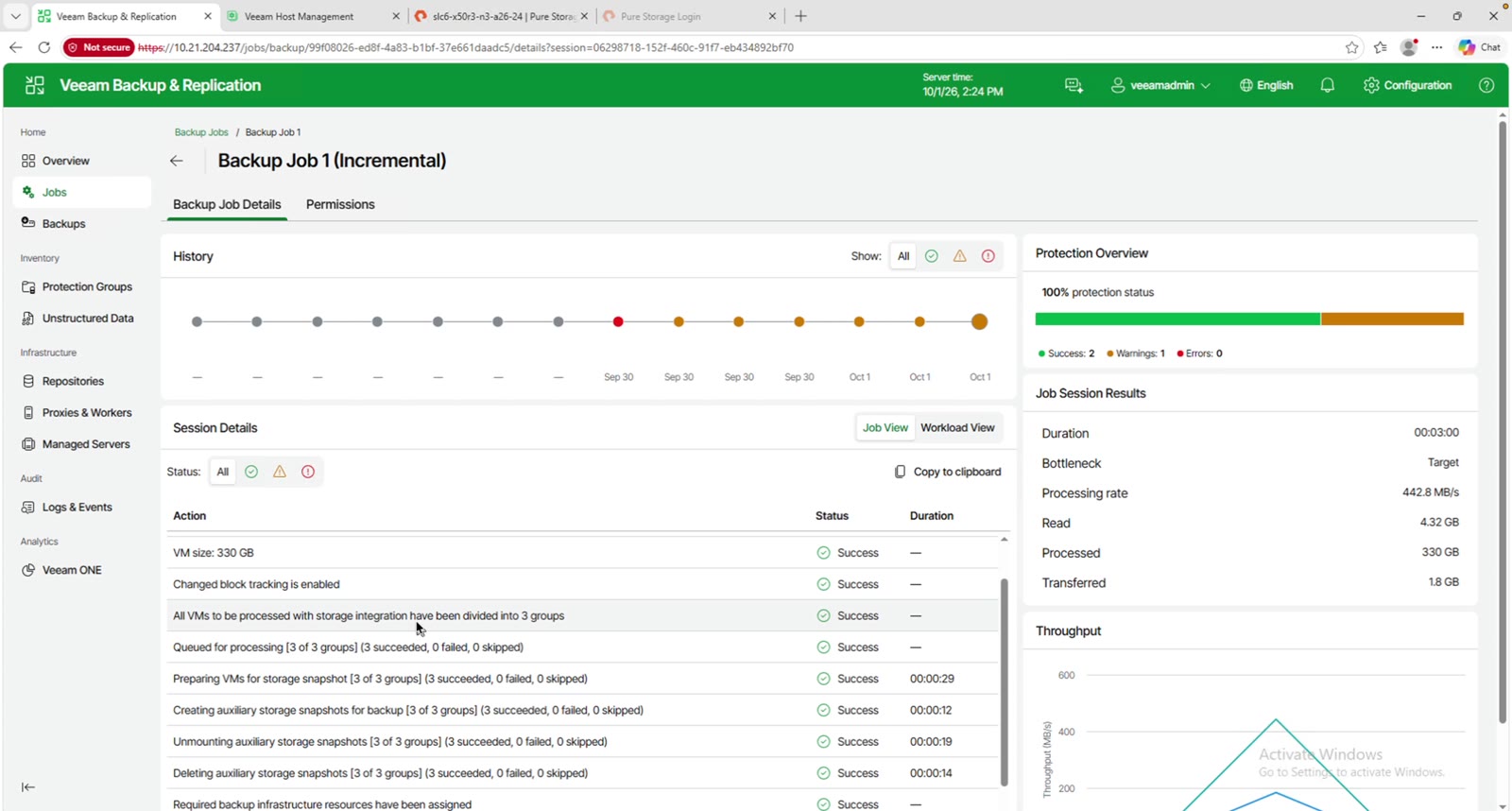
The workload view shows the same thing: the backup proxy mounted the storage snapshot clone and backed up the virtual disk from it. It’s on by default. Once the plug-in is in and the infrastructure is set up right, it just works. If you’re a Pure plug-in with Veeam user today, it’s the same look and feel you’d expect.
Snapshot restore and the Windows console
The other half of the plug-in is snapshot restore, a big feature customers love. It was always my favorite part of the Veeam integration: not only do I have backups to recover from, I can recover from really fast snapshots right on the storage layer.
For this you use the Windows console with a remote connection to the VSA. Under Storage Infrastructure it looks a lot like it did before, but now you’ll notice the Everpure Fusion label. That means you’re no longer adding storage individually. You’re adding the fleet.
Once you add the fleet, Veeam enumerates every array attached to it and shows them in the console. From there you can search for snapshots, restore from them, and your backup jobs take advantage of them.
If you change something later, like adding another array, it all follows suit. Veeam’s periodic rescan finds the new elements. It makes things a lot easier to manage at a policy-based level. And it doesn’t matter whether your backups land on a Linux repository, object, or Windows. API and PowerShell work the same as before too. All the same controls, just at the fleet-wide level.
Adding a Fusion fleet
Adding a fleet is straightforward. Give it the name or IP of an array in the fleet and choose the role. In the demo I’m using block or file storage for VMware vSphere: Fibre Channel, iSCSI, or NFS.
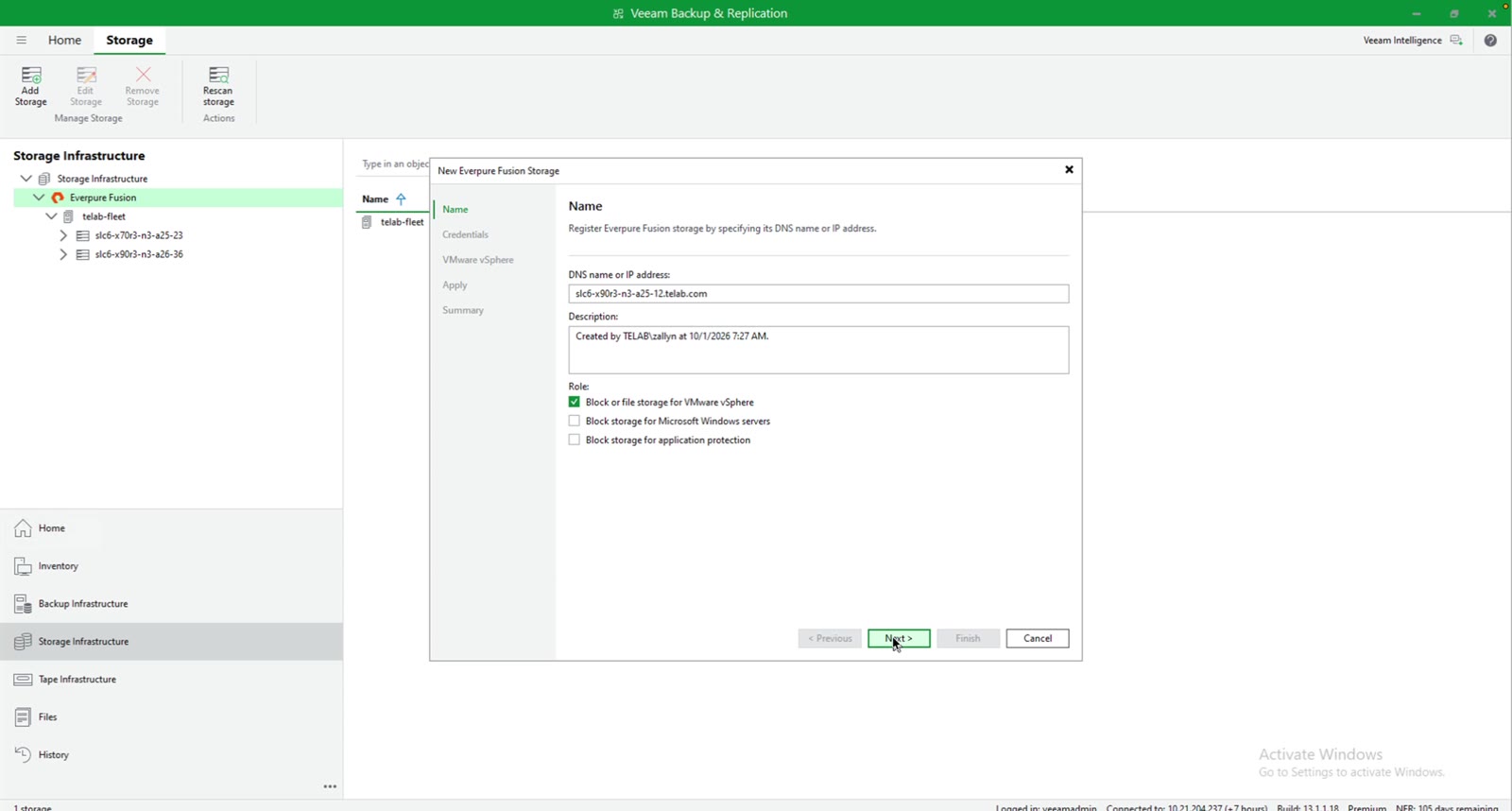
For credentials, authentication in a Fusion fleet is centralized through LDAP, so this is an authorized user set up on the arrays in your Fusion configuration. That part is very easy, and there are plenty of resources around it already. Reach out if you need help.
As long as Veeam can resolve and reach the array and the credentials are right, it checks the connection and mounts that first array. Pick your protocols (I kept the defaults) and watch the left pane. Veeam hits the first array and reads the fleet information. All the fleet does across Fusion is share where the other arrays are. Veeam enumerates through them, and before long every array in the fleet is under management.
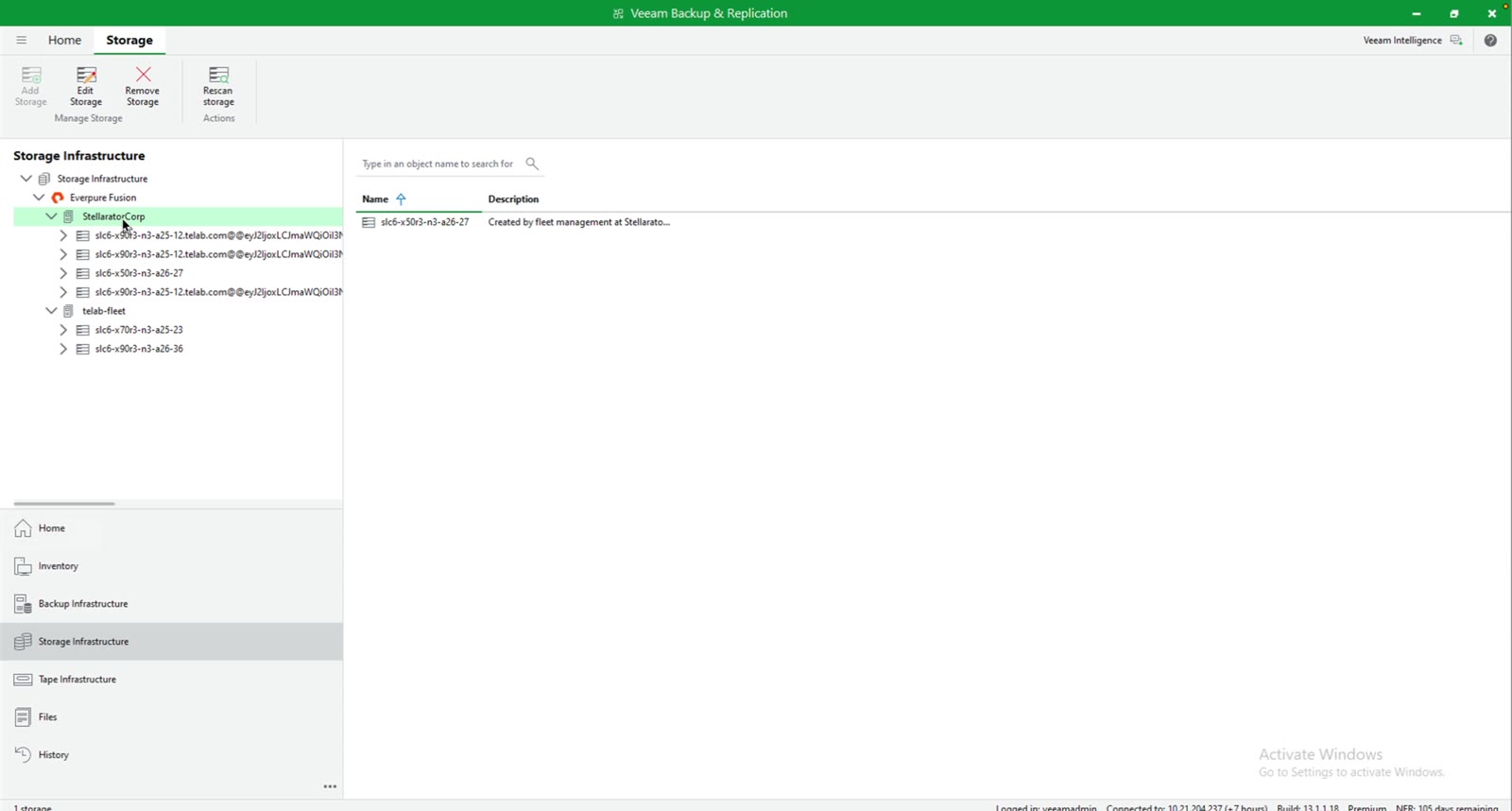
Adding more arrays to the fleet later is a really easy operation: get a key, add it to the existing fleet. Veeam picks it up on its next periodic rescan.
That’s really it. Every feature we’ve come to know, love, and expect from the plug-in, now on 13.1 and running at the fleet level with Everpure Fusion. For the bigger picture on why fleet-wide matters, see Pure Fusion Meets Veeam: Fleet-Wide Orchestration Realized.
One more time: this plug-in is upcoming and not GA yet. If you want to see it in your environment or plan for it, reach out to your Everpure team.
Questions or comments? Join the discussion on the Veeam Community Hub.