Azure AD and App Registrations
Azure Service accounts can be chosen from an Existing Account or created automatically on configuration. This gives greater control and provides the API access required by the VBAzure appliance. Organizations will likely prefer to set this themselves, and not let the application create. In order to use a preexisting account, an App Registration must be made in Azure Active Directory. Help Center Link

Return to your Home Screen Search for Azure Active Directory feature

- From the left-hand menu then Find and select App registrations
- Click +New registration
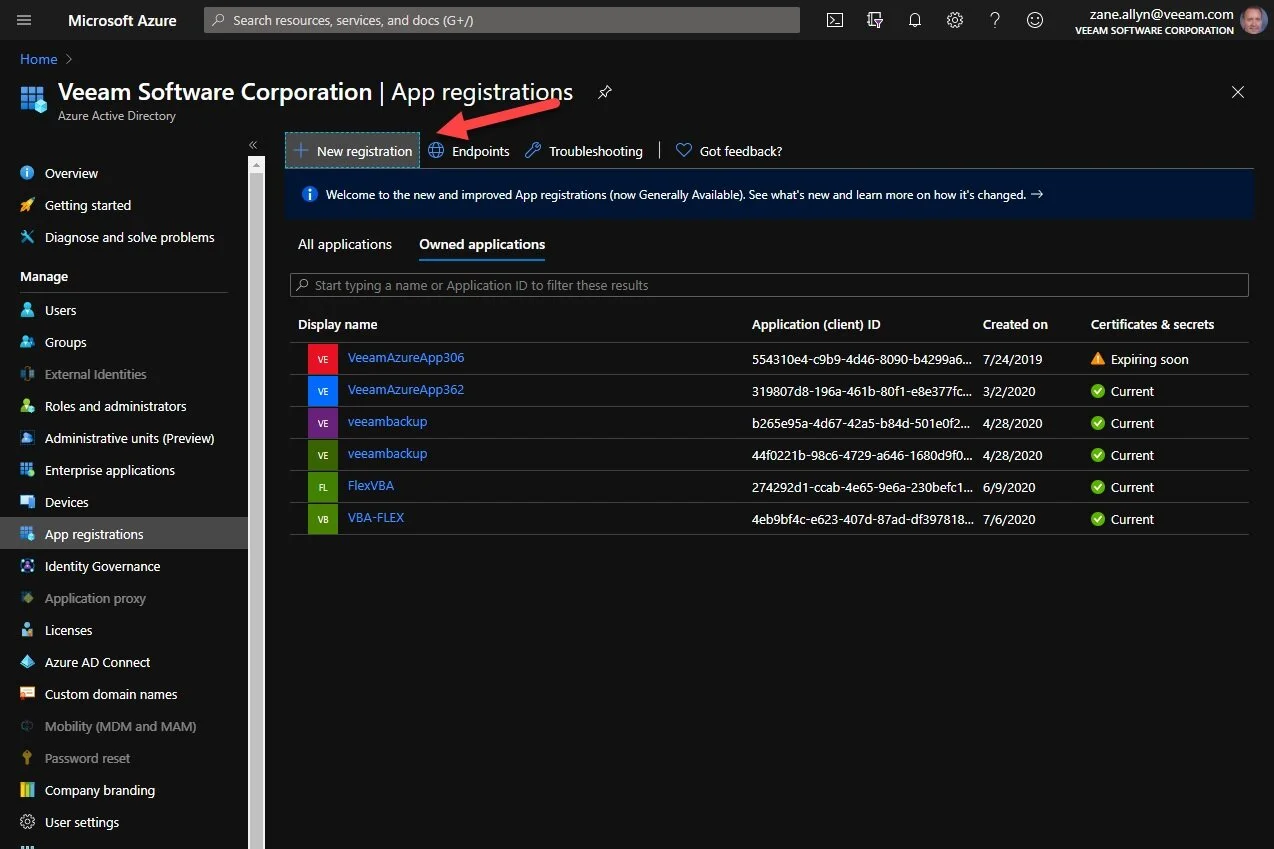
Name Registration (Note Registration name for later) and then select Register from below.

- Using the Azure Portal Menu return to your Resource Group
- Select Access Control (IAM) from the left
- Select +ADD and Add Role Assignment


- Select Role Owner
- Assign Access to
- Azure AD, group or service principal
- In the Search Field put in App Registration Name and select
- Click Save
- From the Azure Portal Menu find Azure Active Directory

- Select App Registrations again and choose your newly created registration
- Copy the Application ID and Directory ID. Copy to Note pad.

- Select Certificates & secrets
- Add New client secret and copy to notepad.
That is all. Easy setup, just need to know where to go. Use the information you gathered to configured the Azure Account in the Veeam Appliance. Then get rid of that Notepad file. Rememebr- the Secret will not be available again- you will need to recreate it should you need to reconfigured. Not a big deal- in fact it allows you to revoke and setup new Secrets for different apps.