Deploy and Configure VBAzure
Written By Zane Allyn
Veeam backup for Azure consist of an Ubuntu VM – configured through Azure, which is then configured though the web GUI. Help Center . In this section you will first Deploy the VBA Appliance from the Azure Market Place. Then you will login and configure settings that will support Backup and Restore. These next steps accompany the previous Azure labs- completing the full lab. Take these steps on their own or use them with the previous steps. The naming conventions are there as suggestions.
Deploy VBA VM
-
Return to your Resource Group from the Azure Portal Menu
-
Click Add and Search for Veeam and choose Veeam Backup for Microsoft Azure BYOL Edition
-
Select Create


1. Virtual Machine Name- example (first initial)(first 4 last name)-vbazure
2. Choose/Check Your Region
3. Authenticate Type Password Username: VBAdmin Pass: Flex12345678!
4. Next+Disk- Leave Defaults
5. Next+Networking - This is where we tie VBA to VNet2

1. Choose your VNet2 and your Sub2
2. Add new public IP (Keep Defaults)
3. Add new network Security Group (keep defaults) VBA will create a Sec Group and NSG
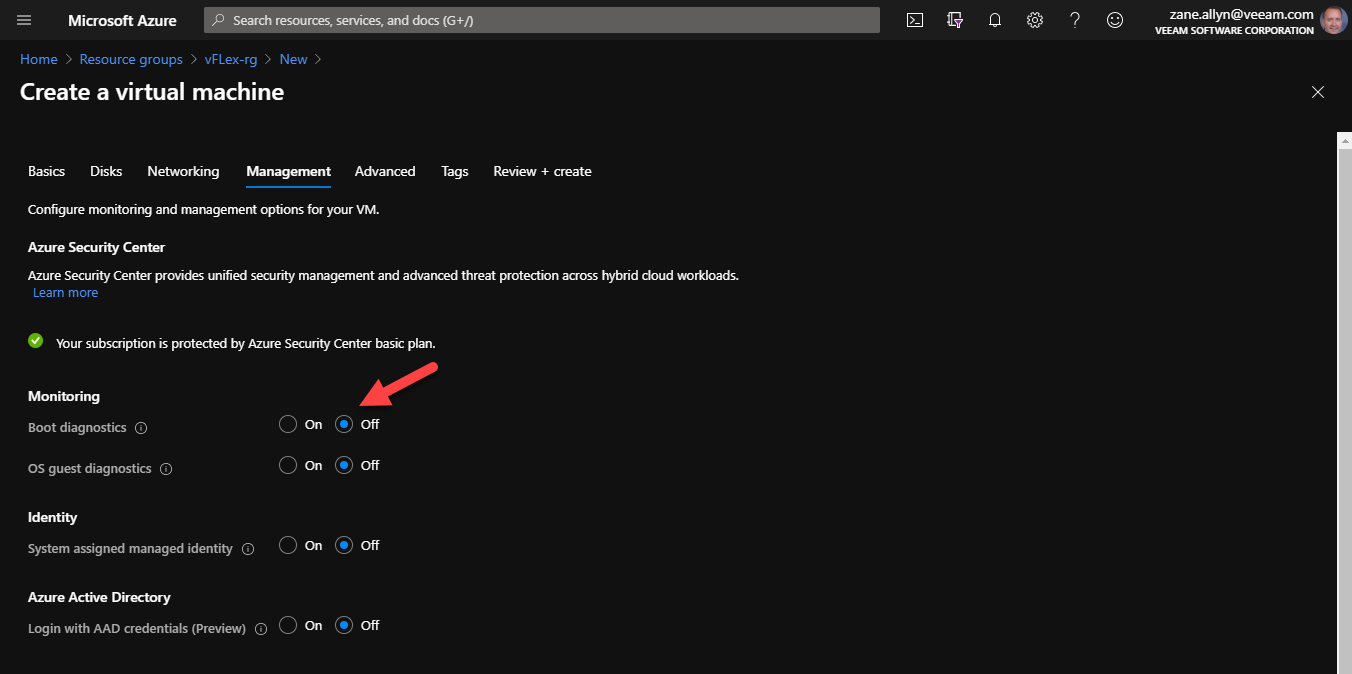
1. Next Management Choose OFF
2. Click Next:Advanced

- Under Custom Data Time type of paste the command below. Make sure the lines break out as below.
#!/bin/bash
timedatectl set-timezone America/Los_Angeles
apt-get upgrade -y
reboot -y
-
On your own, if you’d like to use your Time Zone, you can find it at the following link. Otherwise skip to line 17. http://manpages.ubuntu.com/manpages/bionic/man3/DateTime::TimeZone::Catalog.3pm.html
-
Copy and Paste (replacing America/Los_Angeles) after the line ” timedatectl set-timezone “(RIGHT HERE)
-
Select Review + Create- when validation is passed. Select Create