
Build an Everpure Fusion Fleet Dashboard with Claude Code and MCP
One afternoon I tried something different. Using Claude Code and the Fusion MCP server running on my laptop, I set out to build a clickable dashboard of the Fusion fleets in my lab. Not a report inside Claude, but its own app: running locally, refreshing on its own, and not needing Claude in the loop once it was built. No hand-written scripts, no API wrangling. Just a handful of plain language prompts.
The video below is a condensed replay of that session, about eight minutes. The write-up follows the same path, prompt by prompt, so you can see not just the result but the process that got me there.
Step 1: Can you see my fleet?
First I asked Claude Code if it could see my fleet. Just to verify that I’m looking at the fleet and arrays, and that I have no connectivity issues.
Again, this is using the Fusion MCP server I have set up. No scripts, no APIs. Well, there’s an API bearer token that I set up for each array I added to the MCP server, and through that it can see the arrays, their models, and their Purity versions. In this case you can see how easily it sees all of them.
Step 2: Make it clickable
Next, I didn’t want to just interact with the fleet through the terminal. I wanted a clickable dashboard. With just that prompt, I got the representation you see in the video: the arrays and their relationship in the fleet. I can click through them and see what peers they have, what’s on them, what their data reduction is. All information pulled directly off those arrays.
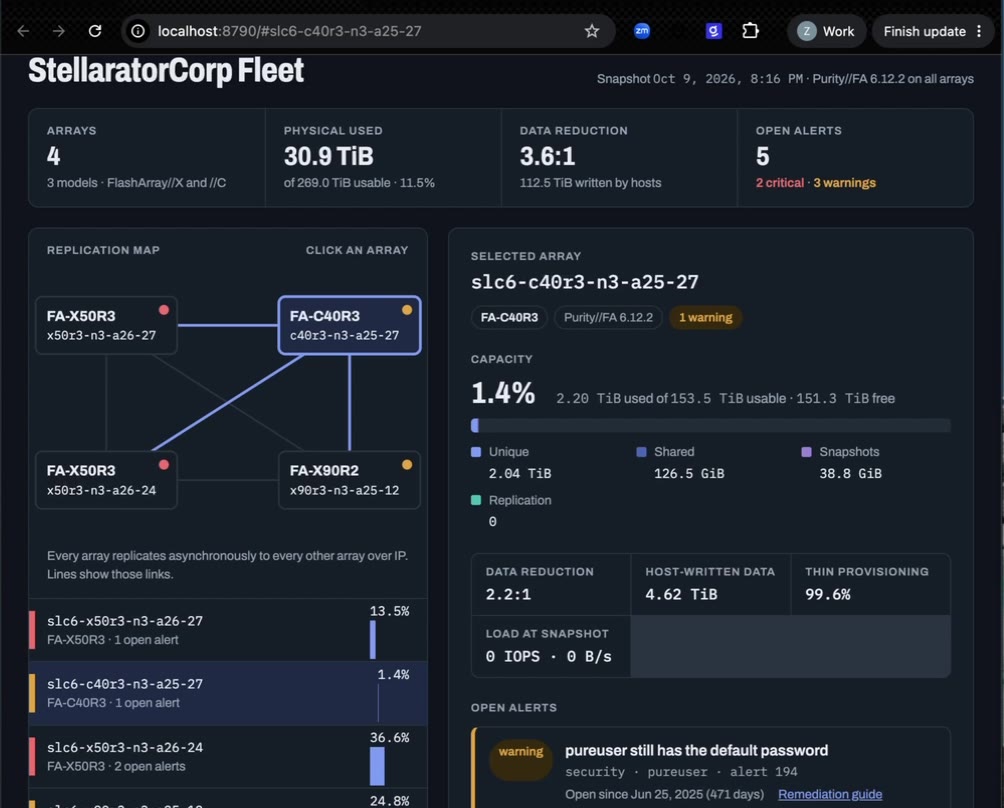
With the MCP server, one bearer token on one array is enough to see the entire fleet. Today, interacting with the arrays still uses API tokens across all of them (that will change shortly), but just to gather information, that one token does it.
That gave me a nice static report, if you will, that I can ask Claude to refresh, pulling real-time information with one simple statement. But as I said up front, I wanted more than that.
Step 3: A standalone app that refreshes on its own
I wanted something I could run outside of Claude, that doesn’t require that connection to run, and that updates on its own. So I asked for exactly that: a standalone app that refreshes itself, shows the hosts connected to the arrays, and the volumes connected to those hosts.
That gives me a little more overarching observability into how things are connected, with information at every level should I need it. Do I need to go down to the host and see the initiators and connected volumes? It’s right there. A dashboard that lets me navigate easily with everything at my fingertips, running right off my machine and connected into my lab over that one simple connector, the MCP server.
This is all read-only at this point. There are no dependencies. It reaches out, gets the information, and gives it back to me in graphical form.
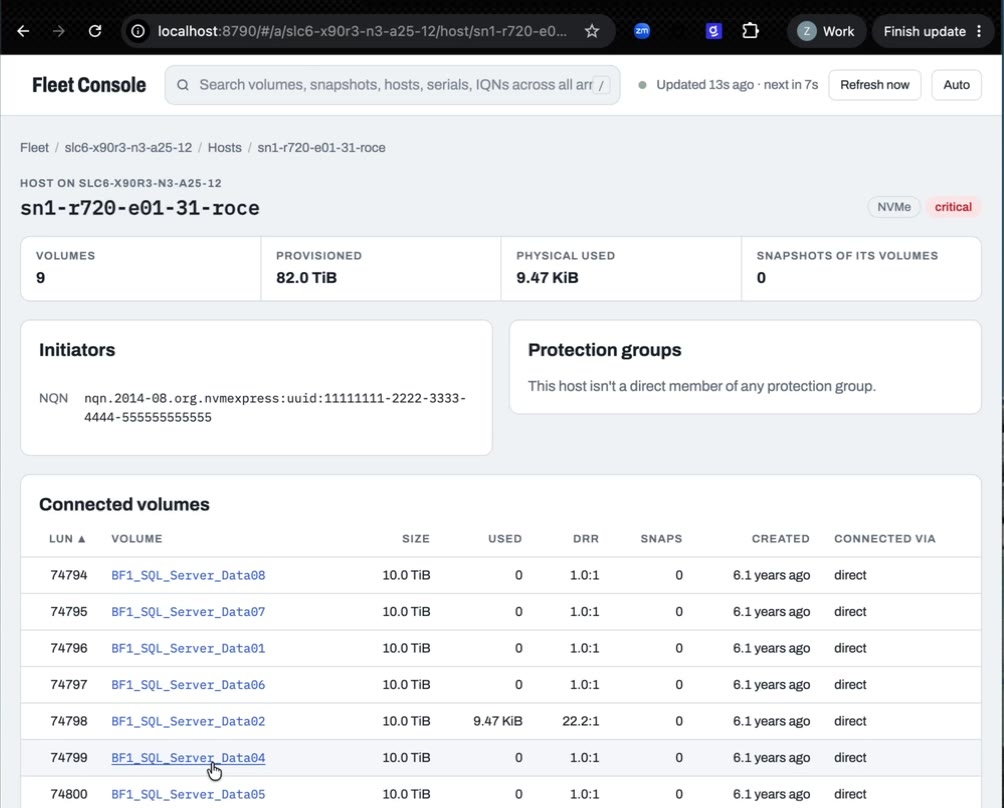
I also wanted it to start automatically, and I made sure all the arrays and their API tokens were added to the MCP server. That way the connectivity is always there no matter how I interact with it, and the app stands on its own. It refreshes and starts by itself, so I don’t have to think about it going forward. I just use it when I need it.
Step 4: Add and manage arrays from the dashboard
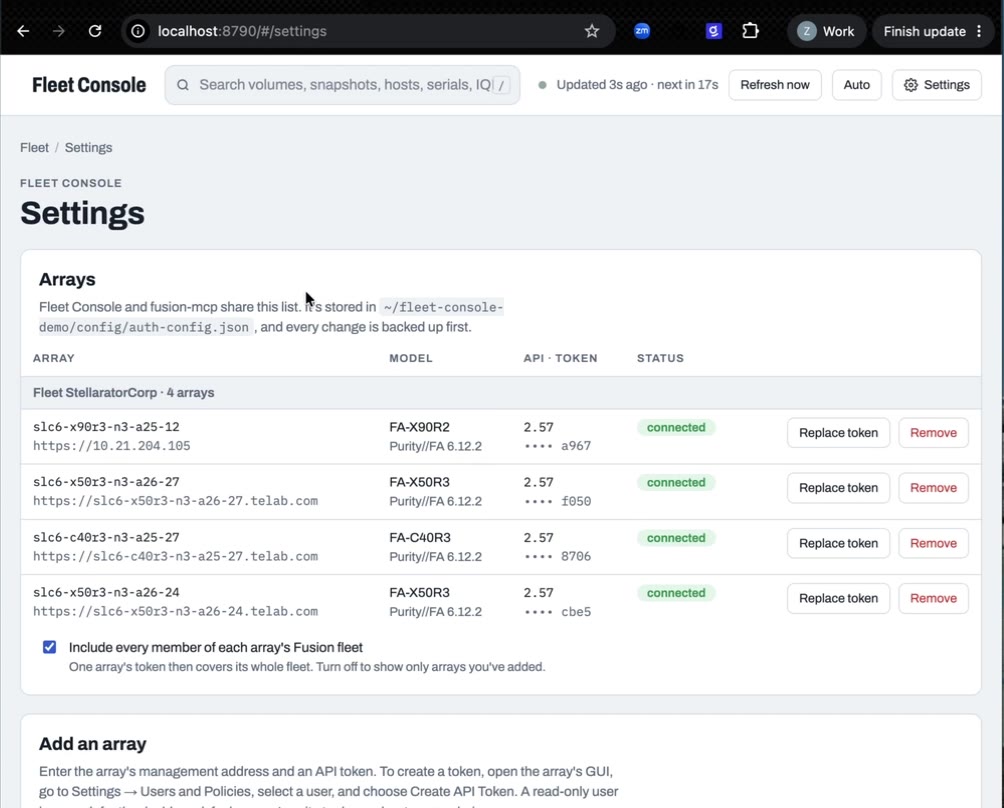
Now I have a dashboard I can use to get information easily, and if I need other features, I can come back to Claude Code and ask. So I added the ability to add and manage arrays. The lab might get another fleet, or I might just want to add individual arrays, and now I can do that right from the console.
It’s easy to administer: get the bearer token, the array name, the FQDN or IP address, whatever it is, and test the connection. Easier than doing it through the CLI, since I already have this dashboard. And it doesn’t just add the array in the browser. It adds it to the MCP server for me, so it’s available through any way I interact with that MCP server going forward.
Step 5: Make it look like Everpure
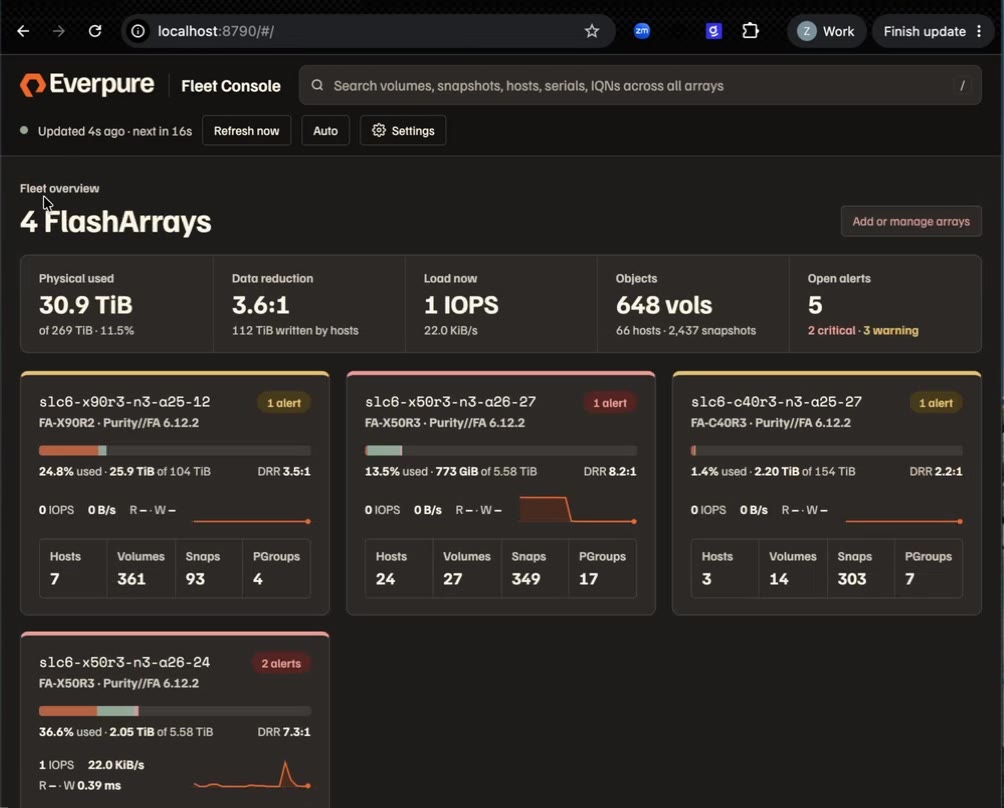
The colors were fine. I could read everything. But I thought: we’re Everpure, and an organization using something like this would want its own brand on it. Make it look more professional, like an app dedicated to my organization.
So I asked Claude to apply the Everpure brand template. We have one internally, and Claude was able to find it, pull the colors, branding, and logo, and apply them, plus dark mode, which is my preference. Same dashboard, just Everpure branding throughout, and more tailored to my organization.
Step 6: Arrange by topology groups
One of the fleets in this lab is set up to use topology groups. That’s the logical grouping at the Fusion fleet level that lets me take arrays inside one larger fleet and organize them into different groupings. Since that’s already configured, I might as well have it represented on the dashboard.
So I asked Claude Code: this fleet has topology groups, go find them, and arrange the dashboard by them. Again, I only need that one bearer token on one of the arrays in the fleet to pull that information. If I change the groups or add others later, the dashboard picks that up on its next refresh.
Now I can see those groupings. Of the two fleets, the second doesn’t have any; the first does. They weren’t shown before because I wasn’t asking for them.
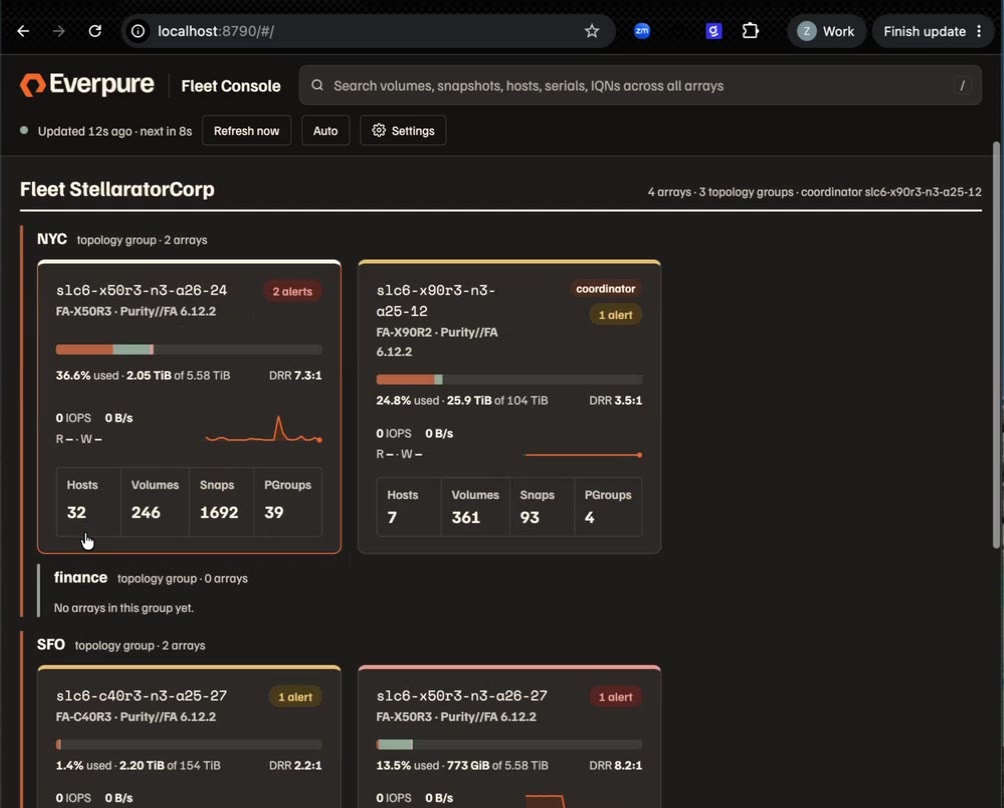
In this demo lab, we use topology groups to represent two different sites, thinking of them as zones or regions. That’s one use case, but you don’t have to use them that way. It’s still the same dashboard, I can still drill down, and now I know where each array sits inside the fleet. Topology groups are one of those Fusion features that will be used for more and more going forward, and in this dashboard I can already use them for observability and decisions.
Wrap-up
That’s it. Easy to set up. The MCP server on its own is great: I can ask real questions of my arrays. But with one connection from a simple-to-set-up MCP server, I can also build a really useful dashboard, just by asking for it.
Next in the series: Road to Agentic Infrastructure Management: Multi-MCP VM Recovery