
Road to Agentic Infrastructure Management: Multi-MCP VM Recovery
Really, this demo is just to show the intelligence you can gain by having these connections set up. I can be very specific from the VM’s perspective. I can find out where the protection is on the Veeam side, where it is on the Pure side. I can get my available recovery options if I’m in a recovery scenario, and I can even compare them: how fast, the recovery point objective, the recovery time objective. All that could just be easily sent back to me by a couple simple phrases.
Zane Allyn here again with Everpure. This time, another installment in the series for using the MCP server with Everpure. In this scenario, I’m gonna show a real-world example of where you may tie MCP servers across your infrastructure.
Demo Setup
So in this demo I have MCP for Fusion, Everpure Fusion fleets, MCP for vCenter, and MCP for Veeam software as the data protection layer. And I’m gonna walk through a simple scenario on how you can tie these three things together to simulate a recovery action. So let’s say [I] work on the help desk or somewhere like that, or in the data protection space, and I get a call, and it’s from the app team, and they say that this VM, so called test-vm01, data got corrupted.
Finding the VM
This could be in a ticket, and just paste it right in here and see where agentic AI or some agent could help me here too as well. But I’m gonna go ahead and just do this manually. So I want to find where it lives and tell me my recovery options, right?
I see some typos, I’m gonna let them fly. So you’ll notice I just asked where the VM is. I didn’t say, “Hey, look on this array. Check in Veeam.” I just say, “I got a VM.” Obviously, it’s in vCenter. We know that ‘cause this is how my Everpure protection is set up. And it’s going to go out there, locate where that VM lives, correlate that with the data protection space, and then tell me my options, just as I asked.
So it hasn’t done anything yet. It’s asking me things to check, right? Hey, do you need files? Do you need a database, right? What type of recovery do you need? Is it the whole VM you’re gonna roll back, right? Is the VM still on? Get some more information around this.
If you had this, you could add it up front. But I am confronted with, hey, these are the options you have, right? I have the backup. You have the snapshot. And you can use [the] Veeam Everpure plugin. I could do the FlashArray snapshot and copy to a new data store, right? And [it] gives me a profile of what I’m gonna lose from a data protection space.
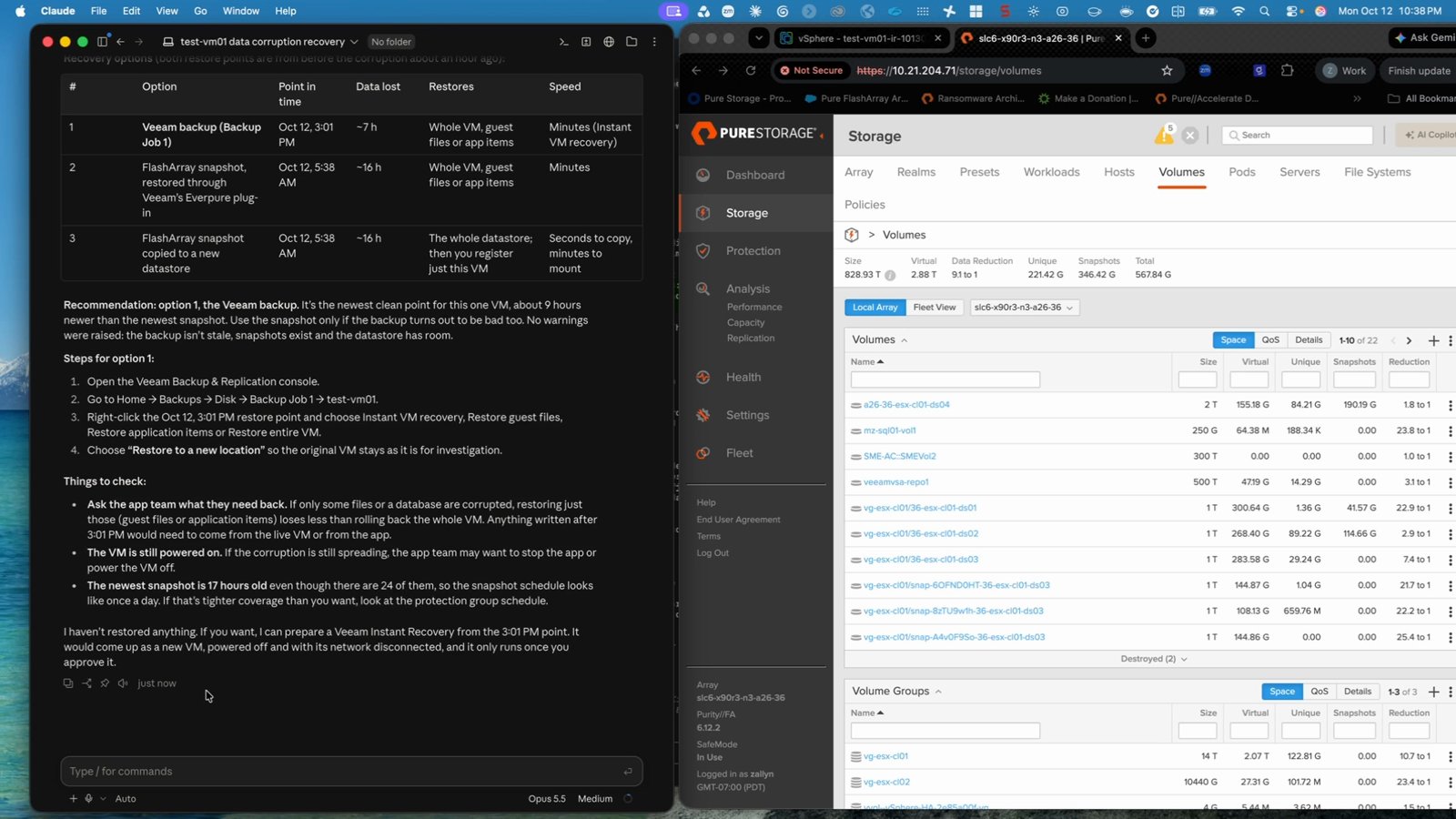
Array Snapshot Restore
And funny, this is probably not normally the case, but my backup is actually the more recent. But let’s say I wanted to use the snapshot, and I just wanted to use it from the Everpure side. So I’m gonna say, “Hey, restore this from this morning’s array snapshot.” See what it says. Can you see my beautiful typos? Not great at typing, but that’s okay.
So we’re gonna give this a little bit, and in this scenario, obviously I’m using a snapshot off the array. I’m not using Veeam’s plugin. I’m not actually able to address that with an API. Maybe if this is more automated, you could do that. You could definitely just log into the console, pull up this snapshot explorer, search for that VM, which we can do now with the Fusion plugin, and do that restore.
But this is confirming, hey, this is a snapshot. This is what it’s gonna look like. You’re gonna have to do some steps if you wanna do this whole snapshot. Maybe I wanna do this scenario. Maybe all that data on there is corrupted, right? It just really depends on the situation. So I’m just gonna say yes, just to show how programmatically we can do this.
And it’s gonna run that restore. So what this is really doing is reaching out to the array, right? It looked into the Fusion fleet, talked to vCenter, knows where the VM lives, pinpointed that to the array in the Fusion fleet, and is cloning that VM. If you look over here, we see that it has restore in the name.
So let’s just go ahead and search that. And there’s our snapshot. Ends in the same, so we know it’s the right timestamp. Then I could go ahead and continue those actions here if I wanted. And it even warns you, “Hey, this is what you got,” right? If you restore this, you only have copy data up to this point based on your snapshot schedule.
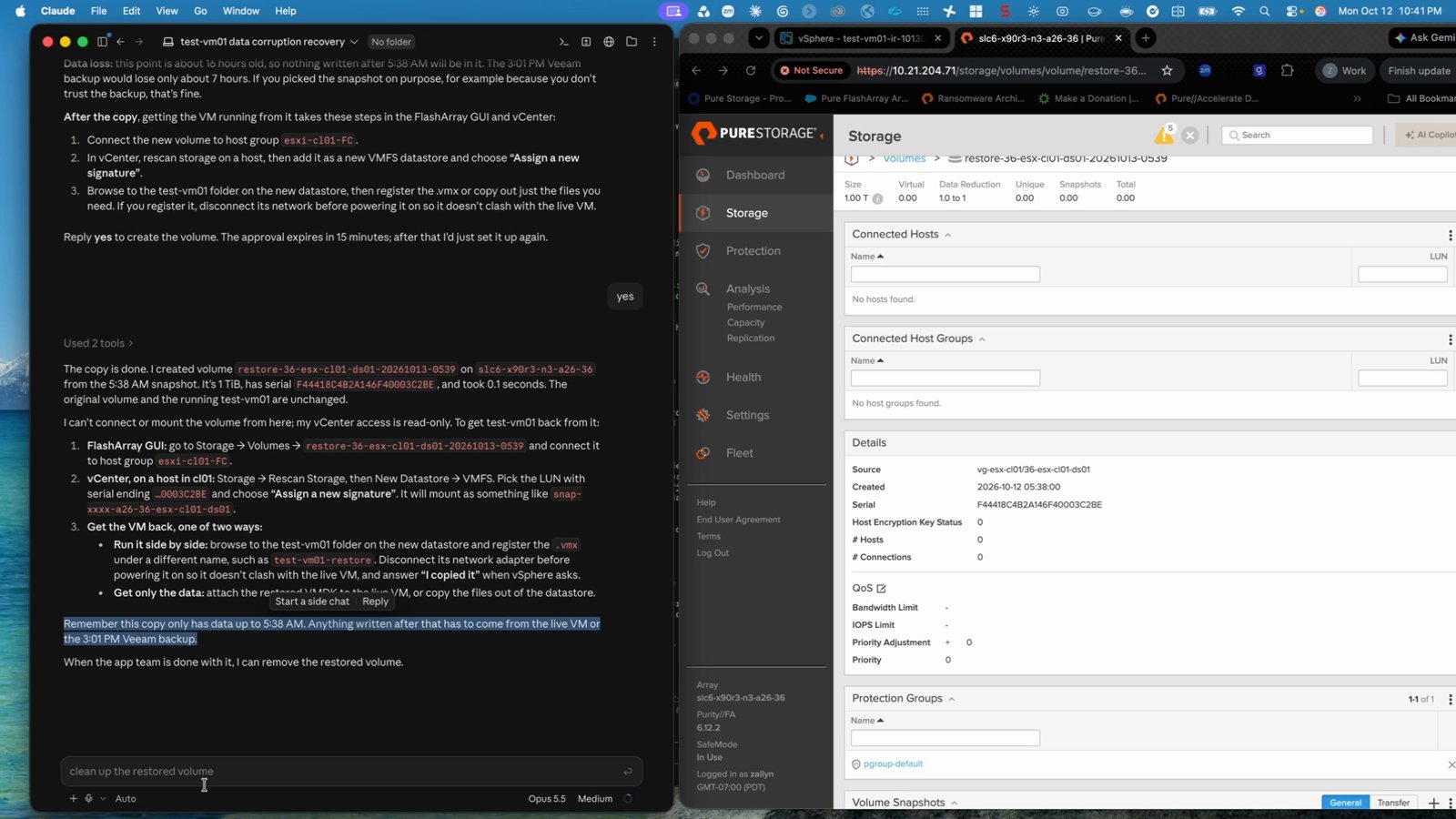
But I’m gonna move to the Veeam backup at this point. Let’s say that actually was closer, or that’s my more preferred method. Remove that copy for us so we’re just not leaving restores around.
So it looks like we have some other sessions in there, and maybe they’re not mine, but let’s just go ahead and be tidy and clean those both up.
Veeam Backup Restore
All right. But now let’s say, “You’d rather restore from the Veeam backup. Use Instant VM Recovery. Preferred method, full VM, and append restore, as I don’t want to erase the original.” Just giving it my intent. You see all my beautiful typos.
Go ahead and fix a couple of those. But what I really like about it is it sees my intent and understands how I meant to type it. And at any case, it’s gonna print back what I’m looking for, so I can really be sure that it’s doing what I asked. So we see here the restore point. It’s gonna create a new VM.
It actually can’t put restore in append. This is something I would’ve usually done manually. But it will put that timestamp there, so the same intent is there. It’s not gonna erase the old VM. I’m gonna get a new VM, and that’s exactly what I’m looking for. And let’s go ahead and say yes, see how that goes.
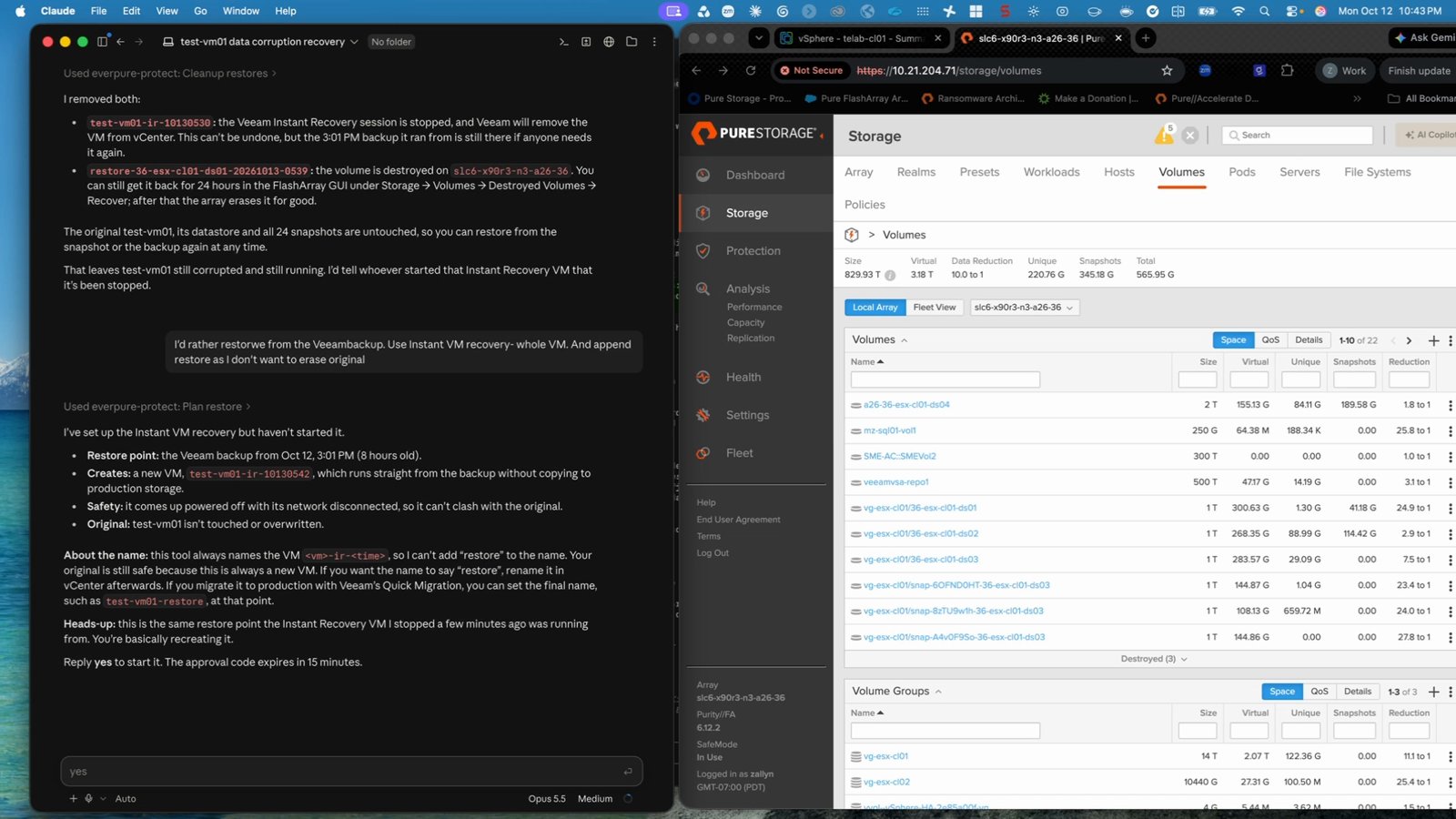
And you’ll notice it says at the back here, “The approval code expires in 15 minutes.” The first one, what is it? Something similar. So it puts this out there, but it doesn’t leave it there forever. If you end up not doing it, get to something else, that will expire. You’d have to run through all this again so something unintentional doesn’t happen later, right? If you were to use this process again. So nice little safeguard built in.
And yeah, it looks like somebody did an Instant VM Recovery before, so it’s doing the same thing. So I’ll give that a second, and we’ll check the results.
Checking Results in vSphere
Now, as I did mention before, you could use the Snapshot Recovery Explorer tool. What this would do is pinpoint, and it’ll let you know exactly where it’s at. Quick search on the Veeam server will let you restore that. So this says it timed out. Let’s go over here to vSphere and give it a check, and we’ll see we have our other VM right here.
So test-vm, et cetera, right timestamp. It’s all powered off. It was intentionally left powered off. It’s intentionally left not connected to the network, so I can make those changes here. If I wanted to force that, I could have asked it to, but we did it in the safest restore mode possible, just in this demo. And I’m done with that.
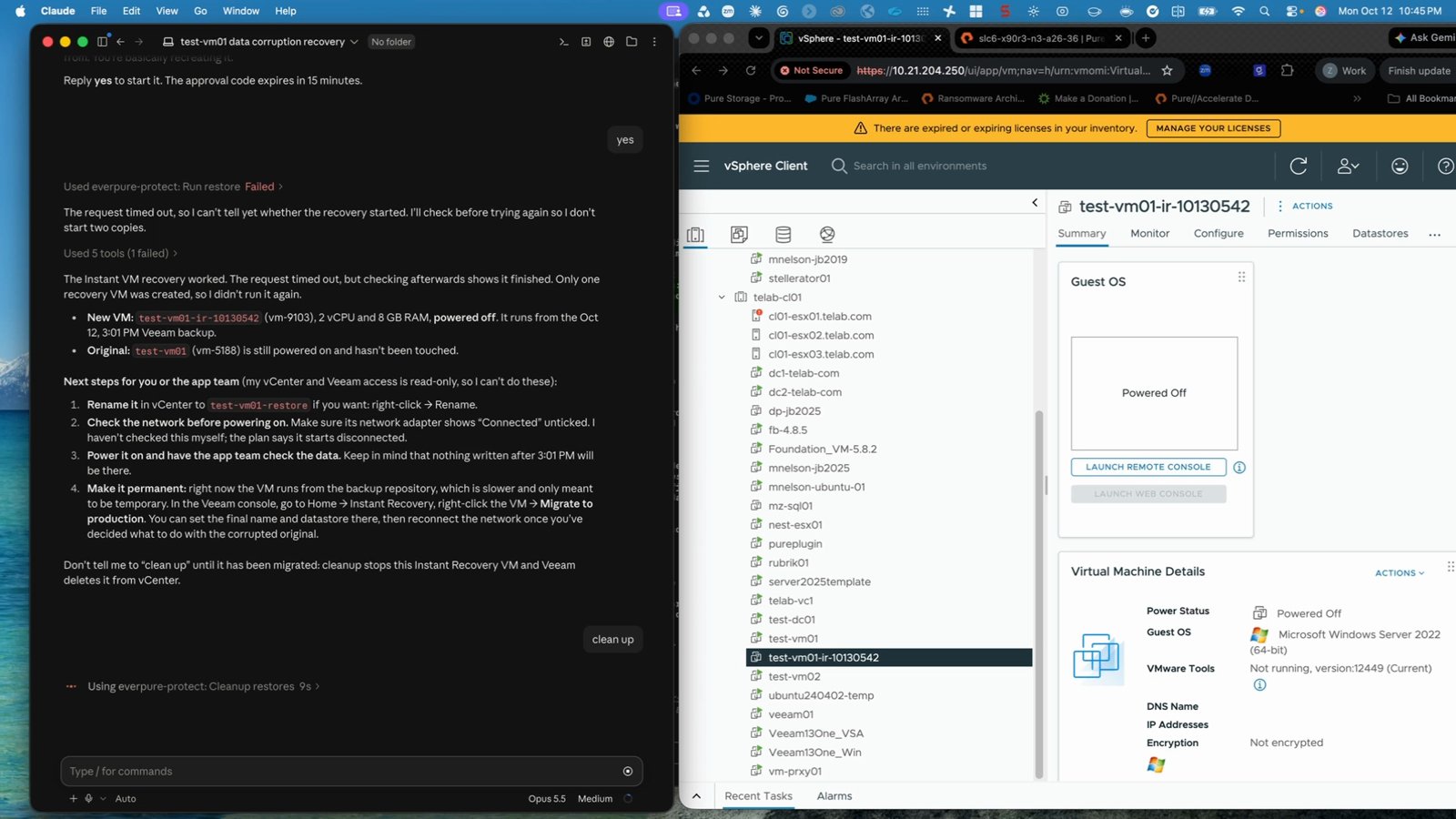
I’ll just go ahead and say clean up, so it’ll put all that away. If you wanted to migrate this fully, you would finish the migration process. I’m just gonna delete it, but you would finish the migration process, which Veeam then vMotions it into the data store. Something you could finish if you really meant to recover this VM.
Yeah. So we’ll just clarify. That’s what my point was. We could do any one of those. We’re gonna remove the recovery VM.
SQL Server Protection
We’ll just say it was a test and we’ll put that away. And then while that’s running, some other task you could do is maybe you had another VM and you’re like, “You know what? I didn’t really like how that was covered.” So I’m gonna say, hey, our SQL Server, and maybe you might even do this before some action is on the VM itself.
So you could reach out and say, “I know we have another VM, it’s a SQL server, is it protected? What is the protection level of that?” And while this [is] running, on the right you can see that test-vm01 restore in Instant Recovery has broken down, so Veeam has cleaned that up.
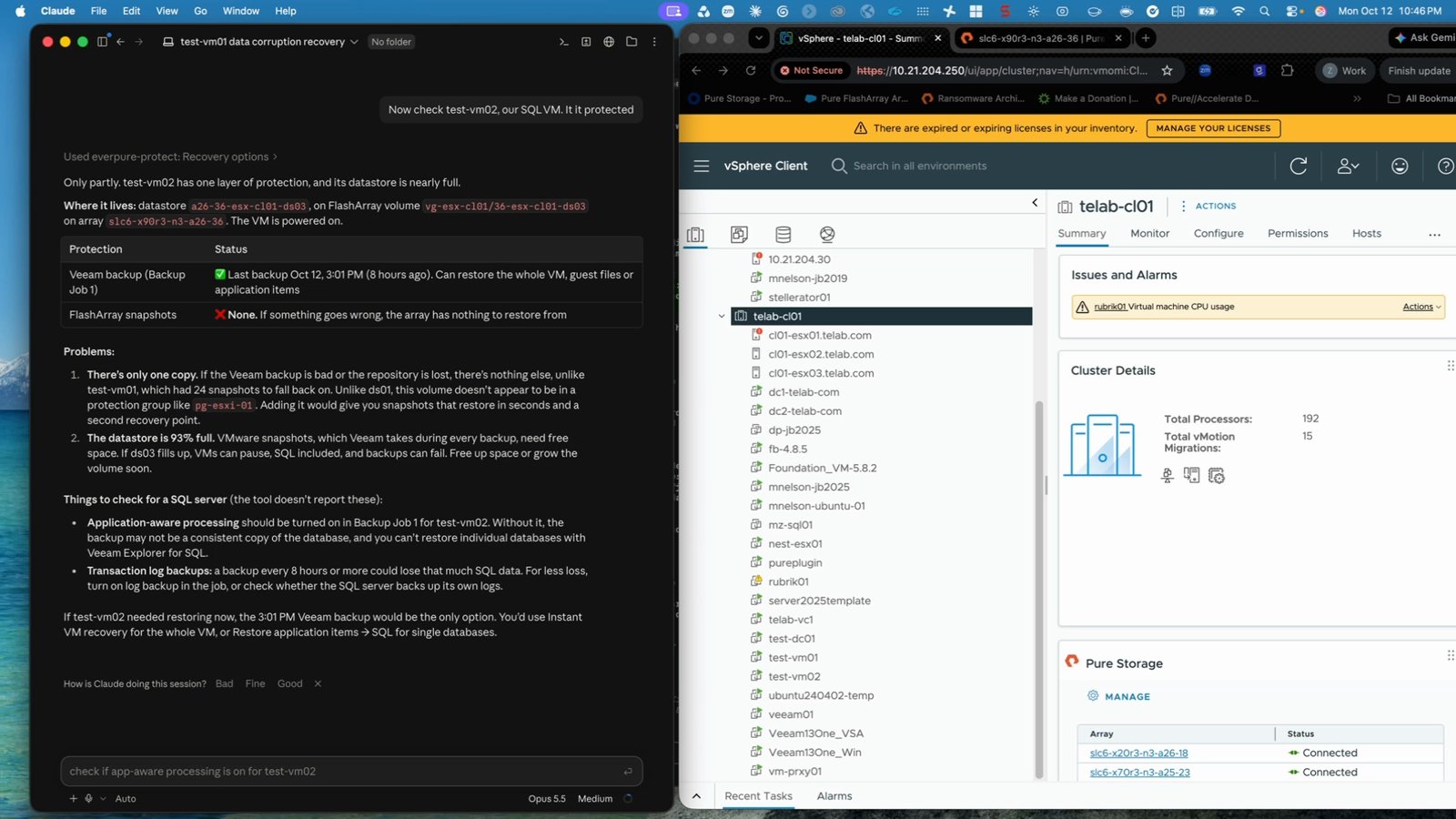
And then on the left, we have the results. test-vm02 has one layer of protection, and its data store is nearly full. Oh, some additional data here, right? I know there’s only one copy. There’s a Veeam backup. It’s giving me data. Hey, if that repository is lost, you don’t have a copy somewhere else, you’re gonna have no way to fail back here.
Protection Recommendations
This is if you were gonna restore it now, how far back you would wanna go, and then this is where you can ask for suggestions or maybe give it additional protection. Yeah. “Is there any additional protection I could apply?” See what it gives me.
We’ll see if it gives us stuff around Veeam or, “Hey, could I add this to a protection group?” This is exactly where you could say, “What protection groups are available? Tell me about these protection groups. What are their schedules?” And then reach out and ask Everpure storage or their FlashArray to add that VM to those protection groups.
So you can make sure it’s in balance, and of course, that protection group will make snapshots, which get picked up by the Veeam plugin, et cetera, and you get that double layer of protection. And honestly, you could do this across all your VMs, to see what is protected and what isn’t protected and give you a balance of the two.
Summary & Wrap-up
So really simple example here of some things you can do, but really this demo is just to show the intelligence you can gain by having these connections set up. So I can ask these questions. I can be very specific from the VM’s perspective. I can find out where the protection is on the Veeam side, where it is on the Pure side.
I can ask for recommendations. I can get my available recovery options if I’m in a recovery scenario, and I can even compare them, right? What the different ones will get me, right? How fast, the recovery point objective, the recovery time objective, all that could just be easily sent back to me by a couple simple phrases, right? A couple questions I ask it to understand what my security posture is.
And we’ll ask it what protection groups will give it daily protection?
And even with what I asked it before, I got some recommendations. Something I didn’t even ask, but it knows that this is something that can cause an error, is that the DS03, the 93% full, meaning the data store itself might fill up, and that could actually cause an outage. And now you know you only have this backup file, so giving me even more information, understanding that I’m talking about data protection, I’m talking about availability, to that degree, and, hey, maybe you wanna do something about this.
Maybe clean up space on the disk. Maybe you wanna get this into a protection group. Maybe you wanna move this to another data store, right? Just giving me some options, even a little bit more than I asked. And then I just asked it for protection groups that are on their array, and it gave me an output of what I have.
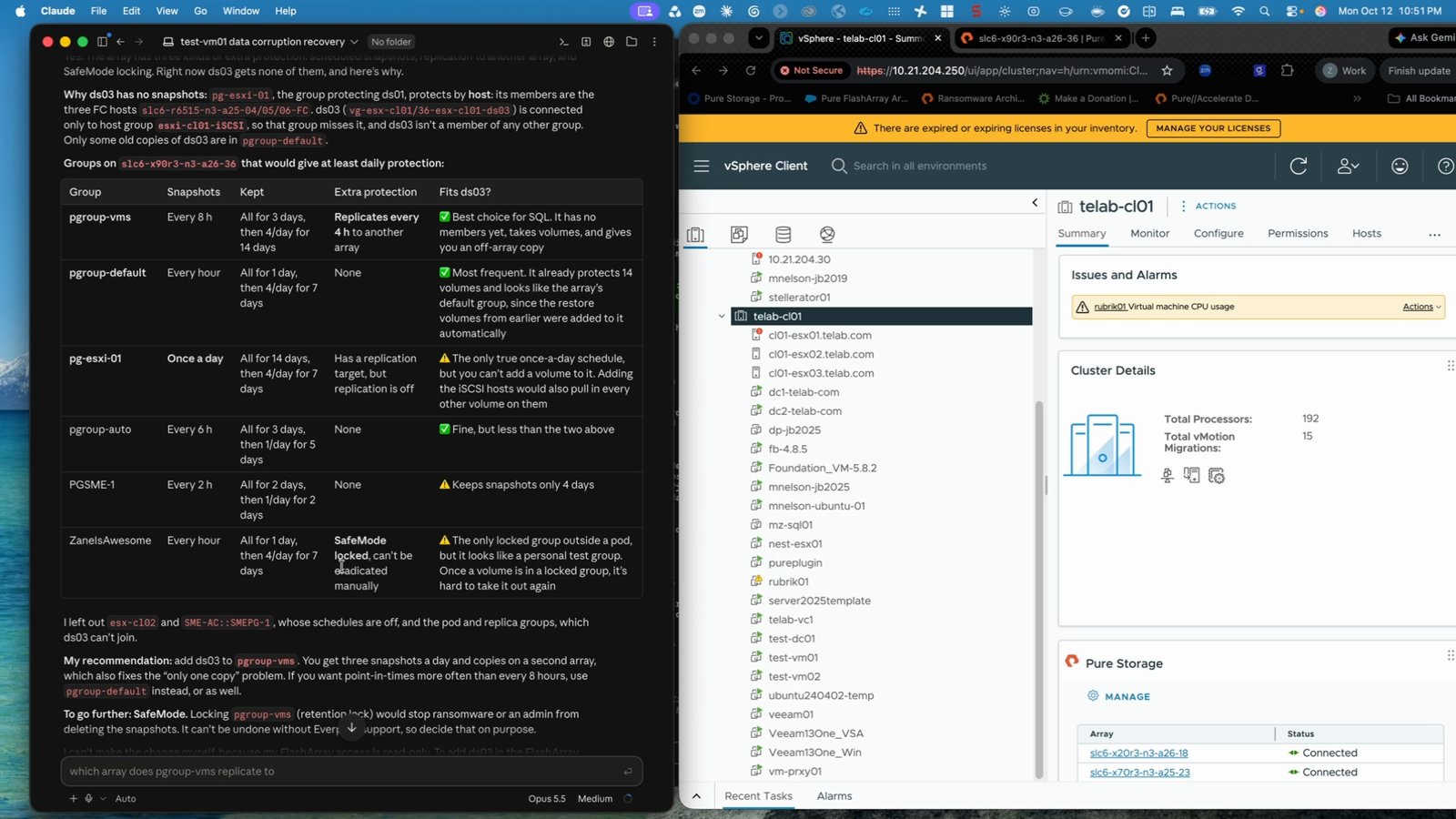
So I could pick one of these and say, “Hey, I want every two hours, six hours,” what would ever work for me, and I can go ahead and ask that array to add it to those PGroups, or I could go in here on the UI on the right and do it myself. So again, simple example. Just wanted to illustrate what you can do with the MCP server, especially across your infrastructure, and hopefully it gives you a glimpse of the possibilities with Everpure MCP.
So I’m Zane Allyn, and I thank you for watching. See you next time.
Previous in the series: Build an Everpure Fusion Fleet Dashboard with Claude Code and MCP